
Re: The HOW TO DO IT topic.
How to set up a poll in a new post
Start a new topic. Give it an explanatory title in the top line.
Post some text in the big box, explaining what the subject of the post is and that there is a poll.
You can only set up a poll when making the FIRST post in a new topic.

Scroll down. Underneath the SUBMIT button. Don't press that yet.
You will see two tabs. One is OPTIONS. Ignore that.
Next to it is POLL CREATION. Click on that.
You have to put in a poll question in the small top field.
In the bigger box under that, put the answer options - each one on a separate line.
You can state how many options a user has for answers, it defaults to 1.
You can set the length of the poll (number of days). Leave it as 0 to allow voting to carry on.
Click in the ALLOW RE-VOTING box if you allow people to change their minds.
Make sure your poll options are correct before setting submit, as if you go back and change them later, it loses any votes that have been cast.
Once you've done those bits, you can go back up the page a bit and click SUBMIT.

Start a new topic. Give it an explanatory title in the top line.
Post some text in the big box, explaining what the subject of the post is and that there is a poll.
You can only set up a poll when making the FIRST post in a new topic.
Scroll down. Underneath the SUBMIT button. Don't press that yet.
You will see two tabs. One is OPTIONS. Ignore that.
Next to it is POLL CREATION. Click on that.
You have to put in a poll question in the small top field.
In the bigger box under that, put the answer options - each one on a separate line.
You can state how many options a user has for answers, it defaults to 1.
You can set the length of the poll (number of days). Leave it as 0 to allow voting to carry on.
Click in the ALLOW RE-VOTING box if you allow people to change their minds.
Make sure your poll options are correct before setting submit, as if you go back and change them later, it loses any votes that have been cast.
Once you've done those bits, you can go back up the page a bit and click SUBMIT.

Re: The HOW TO DO IT topic.
HOW TO SEND A PRIVATE MESSAGE.
All registered users can send Private Messages to other members.
If you know who you are sending a message to, go to the top of the page under the forum banner and click on 'Private Messages'.
A new page will open, showing any messages sent to you and any you have sent.
Above the list is a button marked 'new pm / '
Press the button.
A new page opens.
In the top box, type the user name that you wish to send a message to.
You can add more poeple on new lines.
Add a message subject in the box below.
There are a load of buttons and under those, a big box. Type your message in that.
When you're happy with what you have typed, scroll down a bit and click the 'Submit' button.
This sends your message.
If you get an error at this point, the user names may be wrong.
All registered users can send Private Messages to other members.
If you know who you are sending a message to, go to the top of the page under the forum banner and click on 'Private Messages'.
A new page will open, showing any messages sent to you and any you have sent.
Above the list is a button marked 'new pm / '
Press the button.
A new page opens.
In the top box, type the user name that you wish to send a message to.
You can add more poeple on new lines.
Add a message subject in the box below.
There are a load of buttons and under those, a big box. Type your message in that.
When you're happy with what you have typed, scroll down a bit and click the 'Submit' button.
This sends your message.
If you get an error at this point, the user names may be wrong.
Re: The HOW TO DO IT topic.
HOW TO POST PHOTOS AND VIDEOS ON HERE.
HOW TO POST A PHOTO ON THIS FORUM.
You can display practically any photo on the net on here. Facebook, websites anywhere.
Facebook image links do expire after a time, though.
If you use blogger, log in, click on 'new post' and you'll get this toolbar at the top of your post window.

If you have posted on your blog before, you should be familiar with finding it. It is a lot like using Microsoft Word.
You are looking for the little dark square (over the 'S' in the Slade logo in the pic I put up above). Next to the [-] hyperlink symbol.
That will let you browse for a pic on your computer or phone. Click 'Choose Files'.
Choose the picture. Once it has loaded you need to click on it again so it has a blue border around it and then click 'Select'.
It will upload to blogger. Click UPDATE at the top right of the page to save the post.
Then view the blogger page post in a new window and you should be able to right click on the image and then select 'Copy Image Link'
You can then do a post on here and insert a photo by clicking the image button between the * button and the hyperlink button above the posting space on this page. That will create img tags on this page.
You need to place the link to the picture in-between them, leaving no spaces on either side. Pressing Ctrl + V on your keyboard will drop it in. Click submit at the bottom and your picture will display.
HOW TO POST A VIDEO ON THIS FORUM
Find the video you want to link to on Youtube, Vimeo etc...
Get the URL / web address of the video from the top of the page (highlight the web address, then ctrl + C to copy)
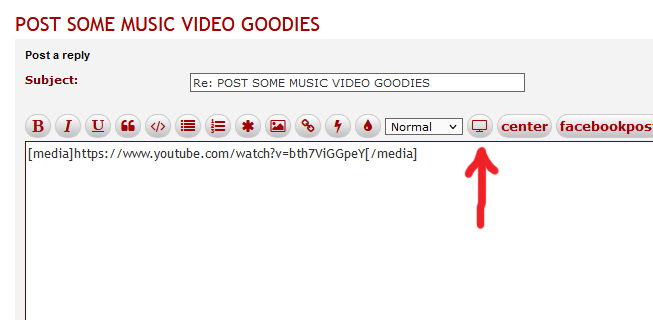
On the forum in a new post, press the media button below. That will give you two tags [media] and [/media]
Click in between them and ctrl+V to paste the web address. As shown below.
HOW TO POST A PHOTO ON THIS FORUM.
You can display practically any photo on the net on here. Facebook, websites anywhere.
Facebook image links do expire after a time, though.
If you use blogger, log in, click on 'new post' and you'll get this toolbar at the top of your post window.
If you have posted on your blog before, you should be familiar with finding it. It is a lot like using Microsoft Word.
You are looking for the little dark square (over the 'S' in the Slade logo in the pic I put up above). Next to the [-] hyperlink symbol.
That will let you browse for a pic on your computer or phone. Click 'Choose Files'.
Choose the picture. Once it has loaded you need to click on it again so it has a blue border around it and then click 'Select'.
It will upload to blogger. Click UPDATE at the top right of the page to save the post.
Then view the blogger page post in a new window and you should be able to right click on the image and then select 'Copy Image Link'
You can then do a post on here and insert a photo by clicking the image button between the * button and the hyperlink button above the posting space on this page. That will create img tags on this page.
You need to place the link to the picture in-between them, leaving no spaces on either side. Pressing Ctrl + V on your keyboard will drop it in. Click submit at the bottom and your picture will display.
HOW TO POST A VIDEO ON THIS FORUM
Find the video you want to link to on Youtube, Vimeo etc...
Get the URL / web address of the video from the top of the page (highlight the web address, then ctrl + C to copy)
On the forum in a new post, press the media button below. That will give you two tags [media] and [/media]
Click in between them and ctrl+V to paste the web address. As shown below.